MacBook Won't Start or Won't Turn On: Causes and Solutions
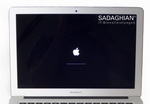
Your MacBook won't turn on, won't boot, or doesn't respond at all? This guide walks you through what you can try yourself, step by step, and when it's time to call in a professional. It covers every model: from older Intel MacBooks to the current MacBook Air and MacBook Pro with M5 chip. For the iMac, a few things are different.
Water damage? Stop here!
Has your MacBook been in contact with any liquid? Then do not follow any of the steps below. Turn the device off immediately, dry the outside and get it to a professional as quickly as possible. Every attempt to power on a water-damaged MacBook can cause short circuits and make the damage worse.
Step 1: Charge and wait
The most common reason for a "dead" MacBook is a completely drained battery. Plug in the charger and check:
- MagSafe, the LED on the connector should glow orange or green
- USB-C, check if the power adapter feels slightly warm
- Try a different outlet and, if available, a different cable or power adapter
On MacBooks with an M1 to M5 chip, keep in mind: if the battery is deeply discharged, the device often stays completely silent for several minutes after plugging in before the charging symbol even appears. That's normal, don't give up too early.
Leave your MacBook charging overnight. A deeply discharged battery can take several hours before the device responds at all. Try again the next morning.
Step 2: Force restart
Press and hold the power button (Touch ID button on newer models) for at least 10 seconds. Wait 5 seconds, then press it again. This ends a frozen system state. On Macs with Apple Silicon (M1–M5), this forced restart replaces the SMC reset of the Intel era – nothing more is needed.
Step 3: Remove all accessories
Disconnect everything, USB drives, external displays, hubs, SD cards. Sometimes connected accessories prevent startup. Try with just the charging cable.
Step 4: Reset, depending on your Mac
The next steps depend on which Mac you have:
Older Intel Macs (up to approx. 2020): SMC and PRAM reset
The SMC (System Management Controller) manages your MacBook's power. Resetting it can fix many startup issues:
- Shut down the Mac completely
- Plug in the charger
- Hold Shift + Ctrl + Option (left side) and the power button together for 10 seconds
- Release all keys and turn the Mac on normally
You can also reset NVRAM/PRAM: Turn on the Mac and immediately hold Cmd (⌘) + Option + P + R for about 20 seconds, then let it boot normally.
Intel MacBooks with a T2 chip (2018–2020) use a different SMC reset: hold right Shift + left Option + left Ctrl for 7 seconds, then additionally hold the power button for another 7 seconds. Release everything, wait briefly, turn it on.
Apple Silicon (M1–M5) and Macs with T2 chip: DFU mode
Apple Silicon Macs don't have an SMC, a forced restart (Step 2) replaces the SMC reset. If that doesn't help and your Mac won't respond at all, the firmware may be corrupted, for example by an interrupted update.
In this case, DFU mode (Device Firmware Update) can help. You'll need:
- A second Mac running macOS 14 Sonoma or later – the revive then works directly in Finder, no extra software (Apple Configurator) needed
- A USB-C data cable between both devices – charge-only cables won't work
Important: DFU mode only works through one specific USB-C port on the dead MacBook. On M1 to M3 models it's the rear left port (closest to the display) – on M4 and M5 models Apple switched it: there it's the front left port.
Choose "Revive", this rewrites the firmware without deleting your data. Do not choose "Restore", as that erases everything.
If you don't have a second Mac, it's best to bring the device to a repair specialist – or send it to us from anywhere in Germany via DHL.
Step 5: Safe Mode
Safe Mode starts your Mac with only the bare essentials, this helps rule out software problems.
Intel Macs
Turn on the Mac and immediately hold the Shift key until the Apple logo appears.
Apple Silicon Macs (M1–M5)
Shut down the Mac. Press and hold the power button until you see "Loading startup options". Select your startup disk, then hold Shift and click "Continue in Safe Mode".
If the Mac starts in Safe Mode, the problem was likely software-related. Restart normally, it often works again after that.
Step 6: Reinstall macOS (without losing data)
Boot into Recovery Mode:
- On Intel Macs, hold Cmd + R while turning on
- On Apple Silicon, hold the power button → Options → Continue
There you can first run First Aid in Disk Utility to check the disk. Then choose "Reinstall macOS". This only replaces system files, your data stays intact.
MacBook won't start: key combinations at a glance
Intel Macs
- Force restart: hold the power button for 10 seconds
- SMC reset: Shift + Ctrl + Option (left side) + power button, 10 seconds
- NVRAM reset: Cmd + Option + P + R at startup, hold for 20 seconds
- Safe Mode: hold Shift at startup
- Recovery: hold Cmd + R at startup
- Startup Manager: hold Option (⌥) at startup
- Apple Diagnostics: hold D at startup
Apple Silicon (M1–M5)
- Force restart: hold the power button for 10 seconds – replaces the SMC reset
- Startup options & Recovery: press and hold the power button until "Loading startup options" appears
- Safe Mode: in the startup options, select the startup disk while holding Shift
- Apple Diagnostics: in the startup options, press Cmd + D
- NVRAM reset: not needed – resets itself automatically when required
- DFU mode: right Shift + left Option + left Ctrl + power button, after 10 seconds release only the three keys (requires a second Mac, see Step 4)
Mac shows a question mark folder at startup
If a flashing folder with a question mark appears instead of the Apple logo when you turn on your Mac, it can't find its startup volume. This symbol mostly appears on Intel Macs – MacBooks with M1–M5 usually boot straight into the startup options or Recovery instead when the startup volume is damaged. The causes range from software to hardware problems:
Software causes
- Wrong startup volume selected, hold the Option key (⌥) when turning on to open Startup Manager and select the correct drive
- Corrupted file system, boot into Recovery Mode and run "First Aid" in Disk Utility
- NVRAM error, reset by holding Cmd + Option + P + R when turning on for 20 seconds
- Defective macOS installation, reinstall macOS in Recovery Mode (see Step 6)
Hardware causes
- If the drive doesn't show up in Disk Utility at all, the SSD or hard drive is physically damaged
- The MacBook Pro 13" 2012 (A1278) has a known issue with the HDD cable (part 821-1480-A), often misdiagnosed as a logic board defect
- A storage controller failure on the logic board can prevent access to the SSD
- On MacBooks with Apple Silicon (M1–M5) the SSD is soldered to the board – if the storage or its power circuitry fails, the only way to your data is a board-level repair
If software solutions don't help and the drive isn't recognised, it's a hardware defect. Request free diagnosis →
"A critical software update is required", what to do
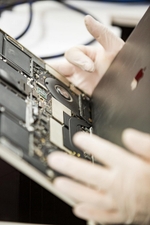
Important: Do not keep turning the Mac off and on. Each failed startup attempt can further damage firmware data.
This message appears when a firmware or macOS update couldn't be completed, for example due to an interrupted update, corrupted T2/Apple Silicon firmware, or hardware problems like corrosion on the logic board.
Possible workaround: Safe Mode
- Start the MacBook and hold the Shift key (Safe Mode)
- Log into your Apple account
- Install a major macOS update (e.g. from Catalina to Big Sur, or the latest version)
After this, the message may disappear and the Mac boots normally again.
Note: In most cases, the error is caused by a hardware defect on the logic board, not by software. Apple replaces the entire board, we repair only the defective component, which is significantly cheaper. More about logic board repair →
MacBook won't turn on, but the fan is running?
If you can hear the fan, feel the case getting warm, or the keyboard backlight turns on, but the screen stays black, the Mac is running – only the picture is missing:
- Press F2 or fn+F2 several times to check brightness
- Connect an external monitor, if it shows an image, the internal display or cable is faulty
- Try the flashlight test: shine a light at an angle on the screen. If you can faintly see outlines, only the backlight is broken
By the way: a MacBook Air with M1–M5 has no fan at all. Watch for the keyboard backlight, the startup chime, or warmth on the case instead.
Display problems usually point to a hardware defect. More about display repair →
Why won't my MacBook start? What's different on M1 to M5
Since Apple switched to its own chips (M1 in 2020 up to the current M5), startup problems have changed too:
- No more SMC or NVRAM reset: the classic reset rituals of the Intel era are gone. A forced restart (hold the power button for 10 seconds) covers everything.
- Firmware damage after updates: if a macOS update is interrupted – for example by an empty battery – the Mac may not start at all anymore. The fix is DFU mode (Step 4); a "Revive" keeps your data intact.
- SSD and RAM are soldered: your data sits encrypted on the logic board. If the MacBook won't start because of a board fault, data recovery is only possible through a targeted logic board repair – simply removing the SSD like in the old days is no longer an option.
- This applies to the newest devices too: the MacBook Air M5 and MacBook Pro with M5 Pro and M5 Max (2026) behave identically to M1–M4 at startup – every step in this guide applies.
MacBook Pro or MacBook Air won't turn on anymore?
The steps above apply to both lines – but the clues that tell you where the fault sits differ by model.
MacBook Pro won't turn on: read the MagSafe LED and the fan
On the 14" and 16" MacBook Pro (2021 and later), the MagSafe LED is your most useful diagnostic tool: if it stays completely dark with the charger connected, test cable and charger on another device first – if it still won't light up, power isn't reaching the logic board. Amber means the battery may simply have been deeply discharged (Step 1: charge and wait). If the fan spins up briefly and the machine shuts right back off, that points to a power-delivery fault on the logic board. And if the screen stays black although you hear the startup chime, head back up to the "fan is running" section.
MacBook Air won't turn on: the silent one
The MacBook Air has no fan – so you can't hear whether it's alive at all. Watch for the startup chime, the keyboard backlight and warmth on the case instead, and try the flashlight test from the section above. On the Air from M2 (2022) onwards, the MagSafe LED helps just like on the Pro; the M1 Air charges via USB-C only – test with a different cable and charger. If the Air won't start anymore after an interrupted macOS update, DFU mode (Step 4) is the way back.
If the device also won't charge, the guide MacBook Pro or Air won't charge takes over from here.
iMac won't start: how it differs from the MacBook
The iMac has no battery – which puts the power supply in focus:
- Check the power cable at both ends (it sits looser than you'd think) and try a different outlet – without a power strip
- After that, the same steps as for the MacBook apply: forced restart, Safe Mode, Recovery – on iMacs with Apple Silicon they're identical
- If an Intel iMac stays completely black and silent, the internal power supply is often the culprit – a classic, very repairable fault
Nothing worked?
If none of these steps helped, there's likely a hardware defect, on the logic board, power supply, or other components.
We offer a free diagnosis, even if you decide against repair. You'll know exactly what's broken and what it would cost.
Not in Hamburg? No problem – you can mail in your MacBook from anywhere in Germany via DHL.
Our services for non-starting MacBooks
- Logic board repair – when the fault is on the mainboard
- Data recovery – we rescue your data, even when nothing else works
- Water damage repair – act fast with liquid damage
- Display repair – when only the screen stays black
- Battery replacement – for power supply issues
Frequently asked questions
What does it cost to repair a MacBook that won't start?
It depends on the cause. Software issues can often be fixed for €50–150. Hardware defects range from €150 to €600. We always offer a free diagnosis with a transparent quote, no risk for you.
Can my data still be recovered?
In most cases, yes. Even if the MacBook won't start, the data on the SSD is usually still intact. We can recover it in about 90% of cases.
My Mac shows a folder with a question mark. What does that mean?
A flashing question mark folder means no bootable system was found. Boot into Recovery Mode (Cmd+R on Intel, hold power button on Apple Silicon) and check the disk with Disk Utility. A macOS reinstall usually fixes this. On older MacBook Pro models (especially the A1278 from 2012), a faulty HDD cable (part 821-1480-A) can also be the cause.
Can water damage cause a MacBook not to start?
Yes, it's one of the most common causes. Turn the device off immediately and do not try to power it on again. The faster you get professional cleaning, the better the chances. Learn more →
Can I send my MacBook by post?
Yes. We offer Germany-wide shipping with DHL. After the free diagnosis, you'll receive a quote. If you approve, we repair and ship it back insured. Shipping service details →
Is there a warranty on repairs?
Yes, all our repairs come with a 12-month warranty.
Is the MacBook Pro 13" 2012 A1278 particularly prone to startup problems?
Yes. This model has a known issue with the HDD cable (part number 821-1480-A), which frequently fails and causes startup problems, often misdiagnosed as a logic board defect. Replacing the cable is significantly cheaper than a logic board repair.
Why won't my MacBook with M1 to M5 chip start?
The most common causes on Apple Silicon: a deeply discharged battery (wait several minutes after plugging in), corrupted firmware after an interrupted update (fixable via DFU mode), or a logic board fault. There's no SMC or NVRAM reset like on Intel Macs anymore – a forced restart is all it takes.
My iMac won't start – do the same steps apply?
Mostly, yes. Since the iMac has no battery, check the power cable and outlet first. After that, the same steps as for the MacBook apply. If an Intel iMac stays completely silent, the internal power supply is often at fault.
Mac shows "A critical software update is required", what should I do?
Don't keep turning the Mac off and on. Try booting into Safe Mode (hold Shift key at startup) and install a macOS update. If that doesn't help, it's usually a hardware defect on the logic board that requires professional repair.